A practical
guide for new users in our emergency communication network
The
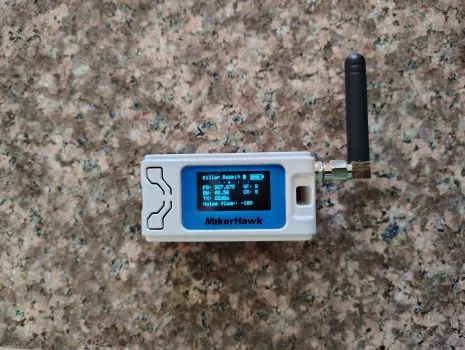
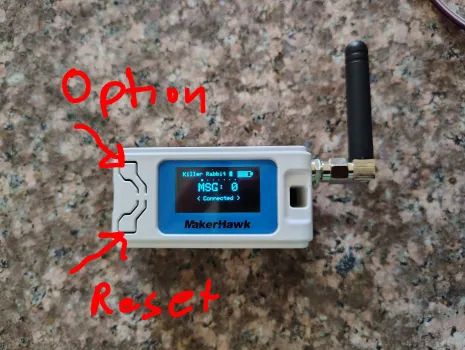
recommended companion device buttons.
Reset: Reset or wake up a companion. If it cycles, resetting
over and over, the battery probably needs to be charged. .
Option: Cycle through the option screens. If the companion
is showing recent messages, long press the option button to get to the regular
option screens.
1. Introduction
The
Meshcore Companion App allows your smartphone to send and receive short text
messages using a Meshcore LoRa device (called a companion). The app connects to
your device via Bluetooth, not the cellular network or the Internet. This makes
Meshcore a reliable communication method during emergencies or infrastructure
outages.
This guide
walks you through installing the app, pairing your device, sending messages,
checking network status, and troubleshooting.
2. What You Need
Before
using the app, you must have:
No license is required.
A Meshcore companion device (ESP32-based or similar)
The Meshcore Companion App installed (Android or iOS)
3. Installing the Meshcore App
Android
Open
the Google Play Store.
Search
for "Meshcore"
Tap
Install.
Open
the app once installation completes.
iOS
Open
the App Store.
Search
for "Meshcore
Tap
Get.
Open
the app after installation.
4. First-Time Setup
Turn on your Meshcore device
Power
it via USB-C or ensure the internal battery is charged.
The
device should automatically begin broadcasting over Bluetooth.
Enable Bluetooth on your phone
Go to
your phone's Bluetooth settings.
Ensure
Bluetooth is ON.
Open the Meshcore app
The app
will automatically begin scanning for nearby Meshcore devices.
Pair your device
If
prompted, allow Bluetooth permissions.
Press the name of your companion when it appears in
your companion list.
Type the Bluetooth passcode displayed on the device
If the screen is blank, press the option
button.
The app
will connect and display your device status.
Once
paired, the app will remember your device for future sessions.
Note: you may need to pair the companion device
in the phone's Bluetooth options before it appears in the Meshcore companion
list. However, it usually appears without doing so.
5. Communicating
Contact List
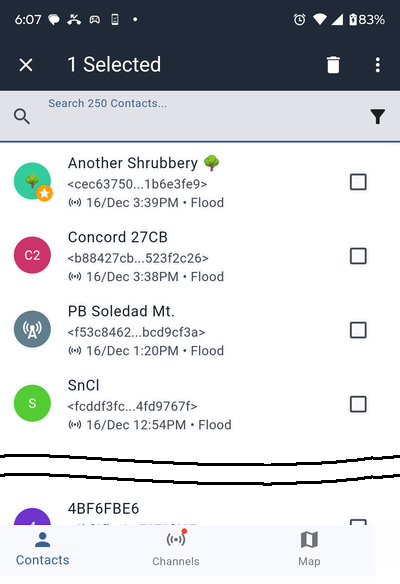
As other companion devices send adverts, they will appear in your
contact list.
The
Contacts Screen
If you want to communicate directly with another companion device
that is not on your contact list, have the user of that device send an
advert.
If your devices are within range of each other, or you are both
in range of repeaters that can reach each other, their device will
be added to your contact list
Also send an advert so that you will appear on their contact list.
Once you appear on each other's contact lists, you can send direct
messages.
Sending a Direct Message (DM)
You
can't send messages to repeaters which are identified by this icon.
Press the Contacts icon at the bottom of the screen (see the above
image).
Press the entry for the device you want to send the message to
in you contact list
Type the message in the Send a message...
window at the bottom of the screen.
Press the paper airplane icon.
While the messages is sending you will see a circle with
three dots under the message
When the message is acknowledged the circle will change to a
gray circle with a white checkmark.
Sending a broadcast message on a channel
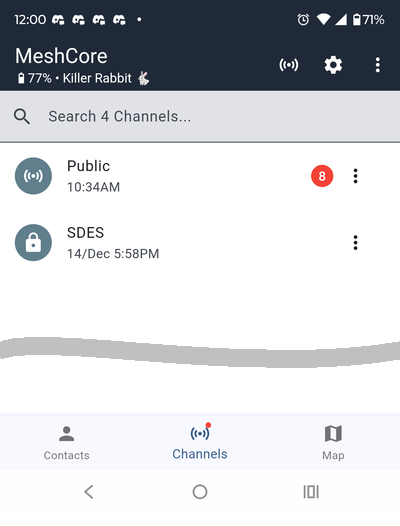
Press the Channels icon at the bottom of the screen
The
Channels Screen
Select the channel you want to send the message on.
Type the message in the Send a message...
space.
Press the paper airplane icon.
While the message is sending you will see a circle with a
black checkmark under the message
Companion units that receive the message will not send
ACKs. Therefore, you cannot know if any companions received
the message.
When a repeater receives and repeats the message the circle
will change ot a black circle with a white checkmark
and you will see how many repeaters repeated the message.
To see which repeaters repeated the message, long press
the message then press Heard Repeats.
Receiving messages
Waiting messages are indicated by a red dot with a number indicating
the number of waiting messages.
Messages may come on channels or individual devices in you
contact list.
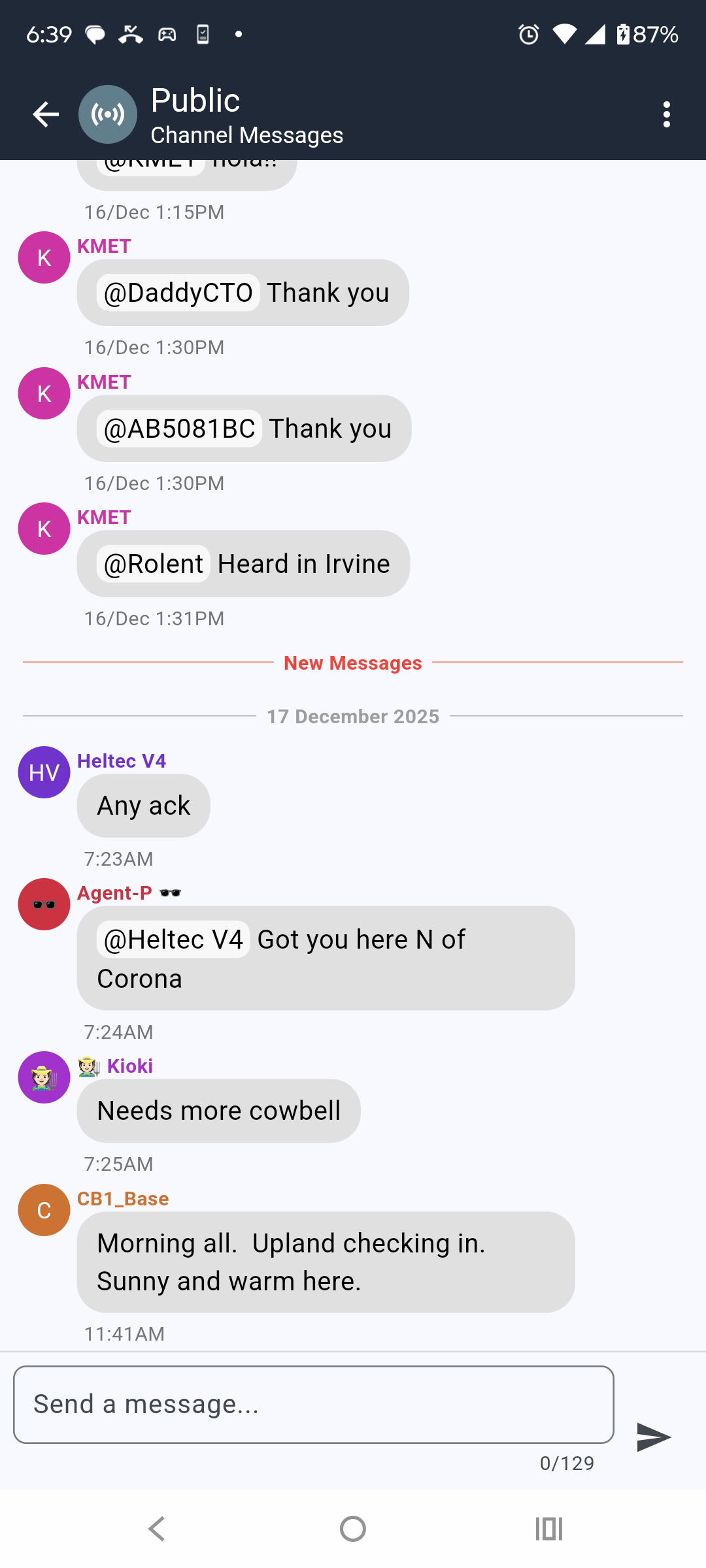
Press the contact or channel to see messages.
Messages
on the Public channel
Long press a message for the following options:
Press Reply to reply to the messasge.
Replies to messages on a channel are not direct messages. A
reply simply shows the companion name at the beginning of the
message telling everyone that you are replying to a particular
message.
Press View Message Path to see if it was received directly or what
repeater or repeaters it came through.
The phone must be connected to the companion when the
messages is received to store path information.
Press a repeater in the repeater list to see what path the messages
took to reach you.
There may be multiple repeaters in the list. This just means you
received the message via multible repeaters.
Press a repeater then press the repeater in the next screen to
see its properties.
The properties screen allows you to see where the repeater
is on the map.
You can also Ping repeaters that you can reach directly.
This sends a request to respond. If the repeater hears
the ping it will respond and you know you can reach that
repeater directly.
Advanced Features
6. Device Settings
Open the
Menu (press the gear icon) to access configuration options.
Name
Set a
unique name so others can identify you.
Public Key
Copy only, if you are instructed to .
Latitude / Longitude
Select your location on the map (press the
map icon) to have your unit appear on the map in other people's companions
and on the Internet map.
If your unit has a GPS module (such as the SenseCAP T1000-E) your
location is sent whenever you send an advert.
However, this apparently not dynamic; According to the
documentation, you must reset the unit to update the locaton via
GPS.
Share position in Advert
Tick this box if you what your location
broadcast with your adverts. You must enable this to appear on the maps.
For exporting and importing your private key. This is for backing up and
restoring your device identity.
Bluetooth Settings
Change your Bluetooth passkey
Contact Settings
Manages how adverts are handled. By default, when your companion hears an
advert, the advertising companion or repeater is added to the contact list.
Message Settings
Auto retry — Your companion will retry messages if an ACK
(acknowledgement) is not received.
Auto Reset Path — If you don't receive an ACK, the last
try will send the message as a flood, i.e., it will tell all repeaters to
repeat the message to establish a new path.
Direct Message Acks — When you send a DM (direct message)
directed to a particular companion as opposed to a broadcast on a channel,
the receiving companion will send an ACK. If an ACK is lost (perhaps by two
devices trying to transmit at the same time) you won't receive an ACK. Here
you can tell your companion to send multiple ACKs.
Notification Settings
Manages when notifications are sent to you.
Position Settings
Does not apply to companions without a GPS receiver.
Telemetry Settings
Manages how telemetry requests are handles. Only applies to devices with
environment sensors except for location.
Theme
Choose the appearance theme for your companion
Import / Export Config
For moving your identity and data to another companion device
Purge Data
Wipes all data in your companion device and Meshcore app.
Bug Reporting / Debug Logs
Allows automatic but reporting to the Meshcore team. You may be asked to
send a copy of your debug logs if you communicate with other Meshcore users
or the Meshcore team for help with problems.
Factory Reset
Returns the companion device to its original state
Reboot
Restarts the companion device. The same as pressing the Reset button on the
device.
7. Understanding Range and Connectivity
Meshcore
devices communicate in two ways:
Direct Communication
If two
companions are close enough (often several miles line of sight), they can talk
directly.
Repeater-Based Communication
If out of
direct range, messages travel through dedicated repeaters.
Meshcore
supports up to 64 hops, allowing messages to travel long distances across a
network.
8. Troubleshooting
The app cannot find my device
Ensure
the device is powered on.
Check
that Bluetooth is enabled.
Move
the phone closer to the device.
Restart
the app.
Reboot
the device.
It's not uncommon to lose your Bluetooth connection, if things aren't
working check your connection and reestablish if necessary.
Messages are not sending
You may
be out of range of any repeater.
Try
moving to higher ground or outdoors.
Check
that your device is paired.
Ensure
your channel and region settings match the network.
The coding rate does not have to match other units. A coding
rate of 8, which sends more error correction data, may improve your
connectivity.
Messages are not being received
Confirm
you are on the correct channel.
Check
that your device is still connected via Bluetooth.
Verify
that your device has battery power.
New units aren't showing up in the Contacts
screen even though I know an advert was sent.
Your contact memory may be full.
Look at the total contacts at the top of the contact list. If it is
an spething like 300 or 350, your contact list may be full. If so, delete some old contact to add new ones.
Hopefully, an app update will delete old contacts automatically.
App crashes or freezes
Restart
the app.
Update
to the latest version.
Reboot
your phone.
9. Best Practices for Reliable Communication
Keep
your device charged.
Place
the antenna vertically for best performance.
Send an avert if you have not used your device for a long period of time
Test
your device regularly.
Keep
your phone within a few feet of your companion device.
Bluetooth can range up to 50 feet under good conditions, but
remaining within 25 feet or closer is more reliable.
10. Safety and Emergency Use
Meshcore is
designed for:
Emergency communication
Infrastructure outages
Disaster response
Church
coordination
Neighborhood preparedness
It is not a
replacement for 911 or professional emergency services.
11. Getting Help
If you need
assistance:
Contact
your local Mesh Coordinator (currently me).
Ask in one of
the Meshcore Discord communities.
Meshcore
West Coast Mesh
SoCal Mesh
San Diego Mesh
So Cal Stakes Emergency Response Mesh
Refer
to this website for guides and updates.
Screens
Press the Option button to get to advance screens.
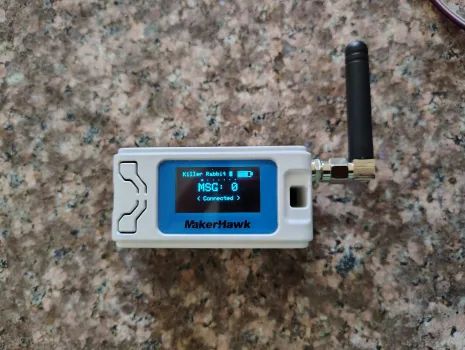
Home
Screen:
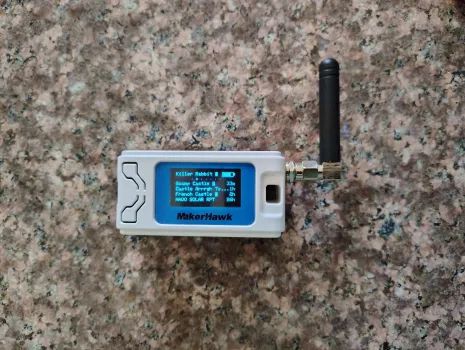
Recent Adverts:
Radio Settings:
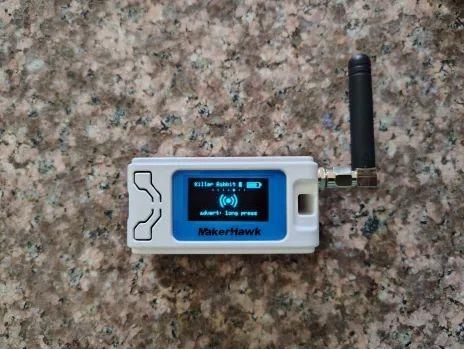
Send Advert: When viewing this screen, long press
the option button to send an advert. This announces or refreshes the
companion's presence on the network. This helps repeaters know if they
should repeat your messages and puts you on the contacts lists of anyone
who receives the advert. To send direct messages each person has to be
on each other's contact list. So it is good practice to send an advert
before you send a direct message to someone for the first time.
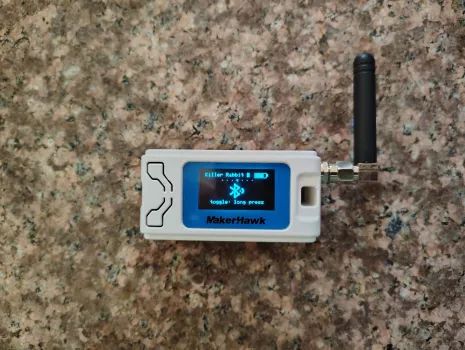
Bluetooth:
When viewing this screen, long press the
option button to turn Bluetooth off or on.
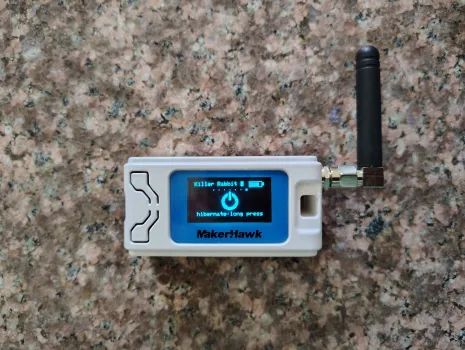
Hibernate:
When viewing this screen, long press the option button put companion
into deep power-saving, unresponsive mode.
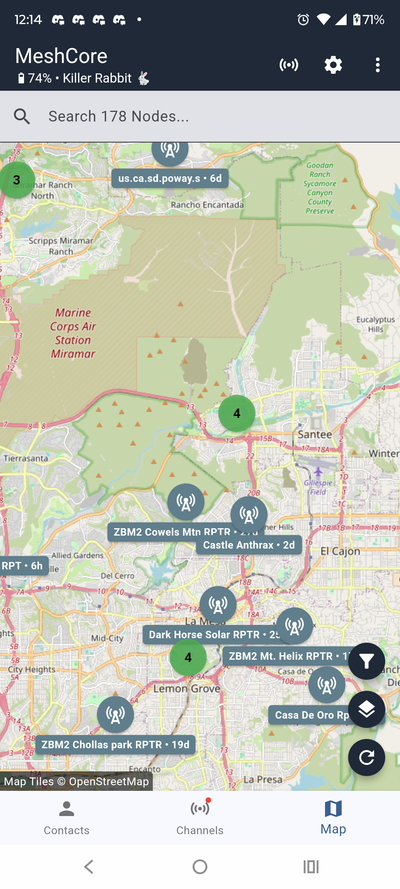
Zoomed in
image of the map of nodes you have received adverts from.
The map shows the locations of repeaters and companion nodes that
your node has received adverts from. Only nodes that have a latitude and
longitude set in their configuration appear on the map.
 You
can't send messages to repeaters which are identified by this icon.
You
can't send messages to repeaters which are identified by this icon.