IMPORTANT: A necessasry
modification to the companion unit enclosere.
I’ve received reports—and experienced it
myself—where the recommended companion unit gets stuck in a repeating “Loading”
boot loop. This behavior is expected when the battery is low, but in these cases
it happens even with a fully charged battery and even when powered through USB.
In my units, the problem disappeared as soon as the circuit board was removed
from the enclosure, and returned immediately when the board was placed back
inside. The enclosure appears to be putting bending stress on the PCB. After
some time with the normal heat of operation, something on the board fails under that
stress, likely microcracks or weakened solder joints (some people report the
problem is with the battery connector, but I have been unable to confirm this). I was able to restore
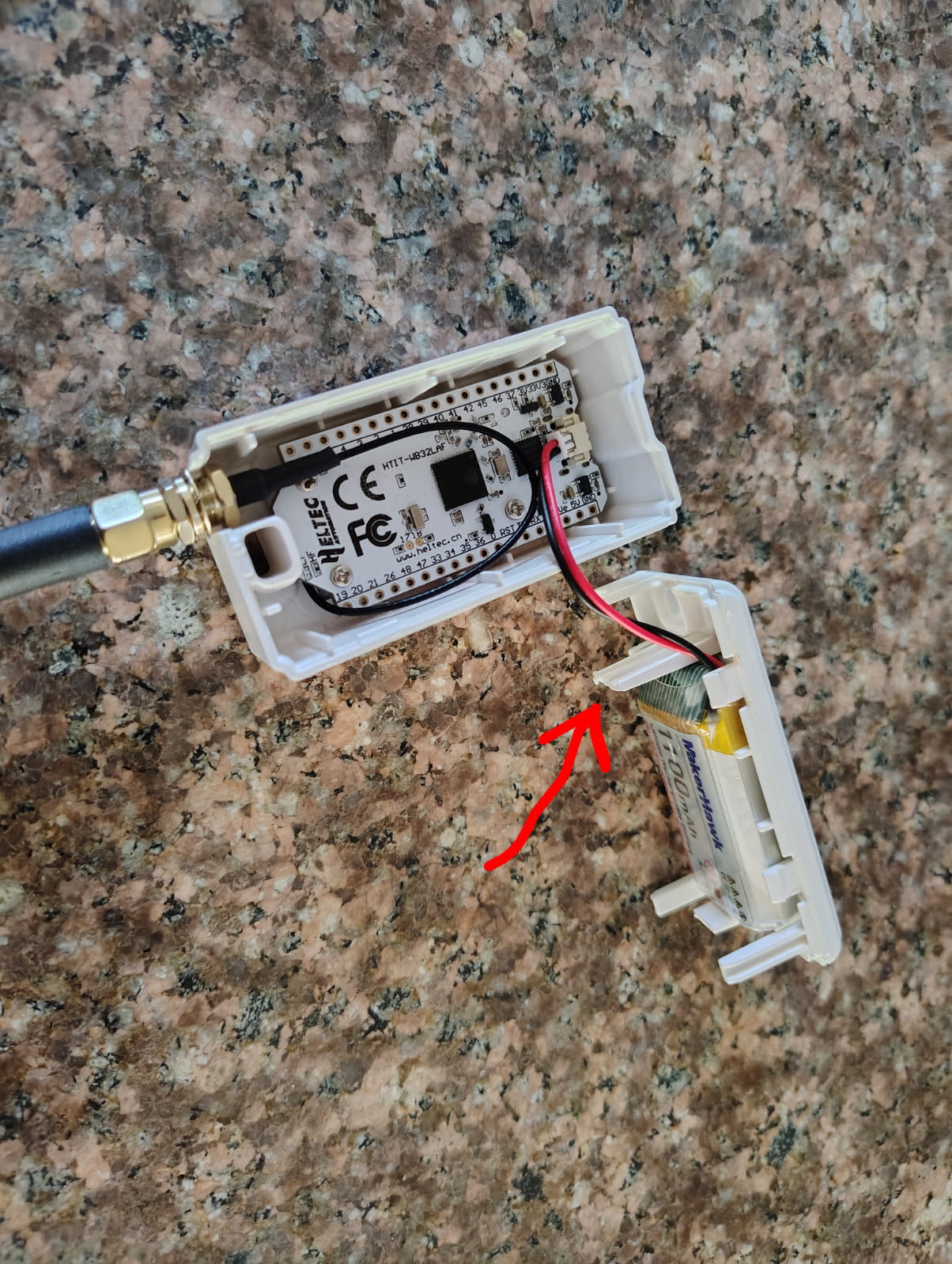
normal operation, even with the board inside the enclosure, by trimming about
1/16 inch off the tab shown in the illustration below.
Cut about
1/16 inch off this tab.
I have made it standard procedure to shorten this
tab before assembly of the unit. I highly recommend that everyone do the same.
Your LoRa unit may come unassembled. They usually snap together.
To make assembly easier:
Bend the battery wires away from the walls of the enclosure to keep
them from interfering with the halves of the enclusure when you snap
them together.
Route the antenna wire likewise.
The antenna connector can be bolted in place before final assembly.
Carefully slide the tab that makes part of the antenna conector opening
under the lock washer.
Operating without an antenna may damage the
unit.
This is unlikely at the power level
used by the companion unit, but to be safe, be sure to connect the antenna before applying power.
2. Install the CP210 VCP Driver on your computer
Many ESP32 boards use a Silicon Labs CP210x USB-to-UART chip for
communication. Without the driver, your computer may not recognize the board.
After installation, plug in your Heltec ESP32 board.
Open Device Manager → expand Ports (COM & LPT).
You should see Silicon Labs CP210x USB to UART
Bridge (COMx).
The above hardware will not appear unless the LoRa device is plugged
in to the USB port.
The x CP210 and the x after COM will be a number that may differ depending on the driver
version and your computer configuration. For example, the driver may
appear as CP1202, and the serial port as COM4.
Note the COM port number, you will need it later.
MacOS:
Download the Mac VCP driver from the same Silicon Labs page.
Install the package.
Plug in your Heltec ESP32 board.
Runls /dev/cu.* in Terminal—you should see a device
like /dev/cu.SLAB_USBtoUART.
Linux:
Most modern distributions already include CP210 drivers.
Plug in your Heltec ESP32 board and run dmesg | grep ttyUSB to confirm detection.
My suggested hardware is based on the Heltec ESP32
v3. If you are using that, choose Heltec v3
The
Heltec ESP32 v3 as shown on the Meshcore Web Flasher page.
4. Connect Your Device
Plug your device into your computer using a data-capable USB cable.
On the Meshcore flashing page, select Companion Bluetooth.
Look at the Version box and be sure you are installing latest version of
the firmware.
Click the Flash button.
A popup will appear showing available serial ports.
Select the port labeled CP210x, USB to UART
Bridge Controller (COMx) - paired
If you don't see the above controller, it may appear with a
different name. It is likely that the CP210x is the only COM port on
your computer so try whatever appears in lieu of the above.
You may see multiple COM ports. If one of them is not labeled
CP210x, USB to UART
Bridge Controller (COMx), you will need to try
each one until you find the one that works.
If no COM port appears:
Reinstall the CP210x driver
Try a different USB cable
Try a different USB port
Click Connect.
5. Flash the Firmware
After clicking Connect, the firmware will install, taking
about one minute
When complete, the process ends with the
message Flash Complete!
Click Continue.
6. Pair With Your Phone
Open the Meshcore app on your phone.
Turn on Bluetooth.
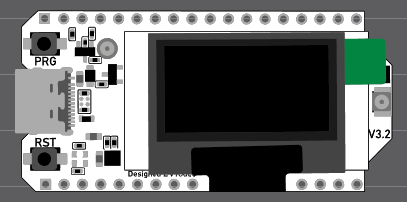
Power the ESP32 by pressing the reset button (the
reset button is to the lower left of the device screen. The device may reboot automatically after
flashing).
Look
for your device in the bluetooth devices. I should be called Meshcore
xxxxxxxx (a random hexadecimal number).
Look on your device screen for a Bluetooth
passkey. If the screen is blank, press the option button
(the option button is to the upper left of the device screen).
Pair your phone to the device.
Once paired you should see the Contacts screen
in the Meshcore app showing No Contacts (you will see contacts soon).
7. Configure your device for the West Coast Mesh
community.
Press the gear icon in the upper right corner
of the screen
Find the Choose Preset button
Select USA/Canada
Change the Radio Settings to the following (press each number to change it):
Currently, the only thing you need to change is the frequency.
You will probably want to change the name of
your companion device. This is the first option on the Settings
screen.
Press the white on black checkmark at the top
right of the screen to save changes.
Set up the private SDES private channel
Go to the web page that has the SDES channel QR code.
Contact me or
another participant to get the URL for the page.
You may also scan the QR code from another participant's screen.
A printed QR code may be available from another participant.
Press the three dots in the upper right of the
screen.
Press Add Channel
Press Scan a QR Code and scan
the QR code.
8. Test Connectivity
First, send an advert to
announce your presence on the mesh.
Press the radio icon
at the top of
the screen then press Advert - Flood Routed
You may need to do this occasionally.
Try sending a hello message on
the Public channel and see if anyone replies.
If you plan to do multiple tests, add the
#test channel.
Press the three dots
Press Add Channel
Press Join a Hashtag Channel
Type test (all lower
case)
Press the Join Channel
button
Check if you can reach local repeaters.
After sending a message, see if
Repeats Heard appears under the message. .
Move around your home or neighborhood to test
range.
While on the #test channel, send the word, test or
just the letter T.
There is a bot named MeshBud in Pasadena that monitors the mesh and
responds to commands. MeshBud responds to the test
command or the letter T with a list of
repeaters your message went through to get to its location. To see the
repeater names spelled out us the command path.
If MeshBud fails to respond, or you are otherwise unsure if your
messages are getting out, go to the West Coast Mesh Discord and look for
live-mesh-feeds and click on #test
channel.
Yet another bot (or several) monitors several public channels and
shows them on the Discord server. Look here to see if your message
reached the bot.
 at the top of
the screen then press Advert - Flood Routed
at the top of
the screen then press Advert - Flood Routed